How to Log In
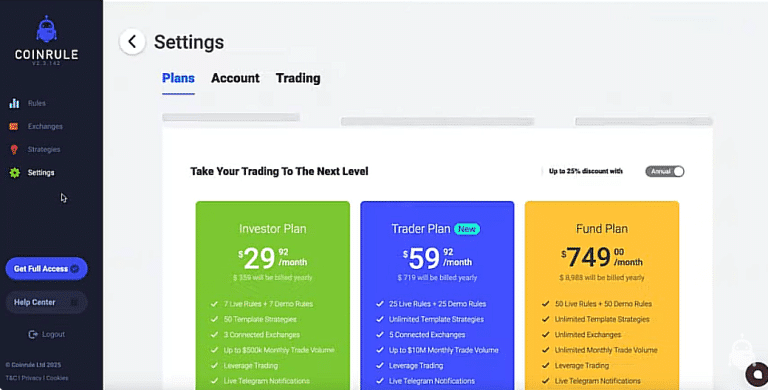
When you log into Coinrule, you’ll land on the rules dashboard. This is the page that’s in front of us. account. Other pages include the exchanges page where you can go to connect exchanges or wallets, the strategies page where you can have a look through and use pre-made templates, the data studio where you can view certain indicators, price data, all extracted from Trading View, and your settings page where you can change your notification settings. You can change certain trade settings and other potential alerts that you may have. By heading over to get full access, you can subscribe to a plan and unlock further features. So on the main rules dashboard, you can filter by all active, draft, paused, completed, and you can tick this on and off to show or not show your demo rules. Also on the right hand side here, you can sort your strategies by profit, loss, profit per trade, win rate, allocation, and by the time that they’ve been launched, get set up and create your first rule.
How to Connect an Exchange
So before we do that, you need to connect an exchange if you want to trade with live funds. So you can go over to your exchange tab over here. If you click on that, you are able to select from a range of exchanges. So, for example, if I want to connect my Binance, click on Binance. I would have to follow the steps outlined here, potentially even watch the videos to get my API keys, paste them into here, as well as my secret key, and click connect. Now, my Binance exchange is connected to my Coin Rule account, and I can start automating trades on Binance.
So how do we do that? We can head to our rule dashboard. We can see our current active rules. So I have this one rule price tracker running on demo. You can double check that your Binance has been connected by clicking on the wallet icon here and checking your balances. You can tweak your strategy until you’re comfortable. Then press play and the rule goes live into the market. If Bitcoin goes down 2%, buy Ethereum at $500. And you can add specific conditions like volume, price or market cap. Moving on to how to create a rule. You go up here top right. You click on the create rule button.
How to Create Your First Rule
At the top, you will have a choice between using the demo exchange or your Binance exchange or any other connected exchange that you may have. The demo exchange is based on Binance market data, right? and is made to somewhat simulate live exchanges and can be used for testing purposes. So, let’s get started with creating a quick rule and launching it on our demo exchange. Let’s create a basic rule using the RSI. So if any coin has the RSI lower than 30 using 1 hour candles by $20 worth of that coin with my USDT, right? So let’s break this down. What is this doing? This will scan any coin offered by this market. So it’s the demo exchange. Any coin in the demo exchange where the this condition is met. The RSI at 14 periods is lower than 30 using the 1 hour candles.
Then this will trigger my buy. Similarly, if I want to set up an exit, I would use the operators here at the bottom and I can choose either then or anytime. Using then means that the rule will run in sequence. It will buy then sell then buy then sell. it won’t buy a second time until it’s sold the first time. So what that means, it will only have one position open at any given time. Whereas if you use any time, right, you will have multiple sequences running in parallel. That means if another coin meets the first condition, the entry condition, it will buy again. And you can set the number of open positions, the maximum number of open positions at the end of the rule. For this example, we’re going to use then. And essentially, we’re going to set up our exit condition here.
Using Indicators to Shape Your Rule Logic
So, if coin from action one has RSI 14 greater than 70 using 1 hour candles. And we want to add another if condition here. We’re going to click if. And you can choose here between and and or. We’re going to be using or. So all coin from action one has price increased by 5% from the price which I bought. So that will be my take profit. I’m also going to add a stop loss here. So or if coin from action one has price decrease by we’re going to make this 3% trailing. This is our trailing stop loss and our take profit here. We’re going to come in and we’re going to add in one more action which is going to be our sell. So 100% of the amount bought of that coin to my USDT wallet as a limit order.
Now I can go ahead and set the number of times I want it to execute. So 10 times. I want it to execute no more than once per hour. So, this is always good to set up, especially when you’re using any coin, as it could trigger fairly often. And we’re going to set this up as simple RSI and we’re going to launch it. Before we launch, we’re going to give it a quick read and click launch. You did it! So, how can we tell that this rule is actually active? Now it will say scanning conditions. Let’s have a look at our templates library and all the pre-made strategies that you can use. So if you head over to the strategies tab over here, you will be able to see all the strategies that are offered with your plan.
How to Use Templates to Build Rules Faster
You can launch any available strategy in the templates library by clicking on it and pressing on select. This will preload the strategy into your rule editor. The next thing to do would be to ensure that you’ve selected the correct exchange. So I’m going to switch over to demo. Then you can click launch to launch the rule instantly. In order to customize your trading settings, please head to your settings page and go to the tradings tab. Here you’ll be able to set up your notifications via Telegram or via SMS. And if you keep scrolling down to the advanced settings, you’ll be able to change your minimum market cap. So this is the minimum market cap for any coin that you want to buy using your rules.
So if you’re using any coin for example and the market cap of the coin that meets the condition is below 10 million it will not buy it. You can set this to any number that you’d want. Similarly for limit orders the safety range can be changed depending on your risk tolerance on how quickly you want the order to execute, how important it is that the order executes. You can also turn on and off trading exceptions such as same coin twice, stable coins, fiat currencies and so on. If you click off here, so do not buy the same coin twice. Now every rule is able to buy the same coin twice. Toggling this on and off will affect all the rules in your Strategy.
Get started with the Coinrule Crypto Trading Bot now!